
Shopping query impressions without clicks are one of the most frustrating patterns a shop owner can find in Search Console. The graph looks healthy. Google clearly shows your pages. Yet the click line stays flat, and sales from organic search never arrive. The good news is that this pattern is rarely random. It usually has a small set of causes, and each one can be tested and fixed.
This article builds on our guide to measuring WooCommerce SEO with a baseline and Search Console. If you have not set up a clean baseline yet, start there. You need reliable numbers before you can tell whether a fix actually worked.
Why a shopping query gets impressions but no clicks
An impression only means your result appeared on a page the searcher loaded. It does not mean anyone saw it. A result in position 9, below ads, a product carousel and an AI summary, can collect thousands of impressions while staying almost invisible. So the first step is to separate two very different situations.
In the first situation, you rank too low. Your average position sits between 8 and 30, and the low click-through rate (CTR) is simply a visibility problem. In the second situation, you rank well, often in the top five, but people still choose another result. That second case is the real pain point, and it is where snippets, intent and AI answers matter most.
Open the Performance report, filter by page or query, and turn on both CTR and position. Sort by impressions. Any shopping query with high impressions, a position under 6 and a CTR well below your site average deserves a closer look. That short list is your repair queue.
Cause 1: weak titles that do not earn the click
Your title tag is the headline of your search result. On product and category pages, it is often auto-generated and bland: a product name, a dash and the shop name. That tells the searcher very little. It does not say why this page is the better choice. AI product photos: Google Shopping rules 2026.
A strong title for a shopping query answers three silent questions. What exactly is this? Who is it for? Why should I pick this result? Specific attributes help: material, size, model, use case or a clear differentiator. Generic phrases like “best quality” do not.
To test this, pick five pages with good position and poor CTR. Rewrite their titles to match the wording people actually use in the query report. Keep them under about 60 characters so they are not cut off. Note the date, wait three to four weeks, and compare CTR at a similar average position. Our WooCommerce product SEO checklist covers title and meta description patterns in more detail.
Do not forget the meta description
Google rewrites many descriptions, but a well-written one still gets used often. Describe the product clearly, mention one or two concrete features, and avoid stuffing keywords. If Google keeps replacing it, check whether your page content supports what the description promises.
Cause 2: missing rich results on shopping query pages
Compare your result with the ones above and below it. Do competitors show star ratings, availability or price details while yours shows plain text? If so, they win attention before the searcher reads a single word. Rich results make a listing taller, more colorful and more trustworthy.
Rich results depend on structured data, usually Product, Offer and Review markup. Many WooCommerce themes and SEO plugins output it, but often incompletely. Missing fields, invalid values or reviews that are not visible on the page can all block the enhanced display. Google explains the requirements in its product structured data documentation.
A simple test routine looks like this:
- Run key product URLs through the Rich Results Test and fix every error.
- Check the Enhancements section in Search Console for warnings across the whole catalog.
- Confirm that ratings and product details in the markup match what users see on the page.
- Recheck after theme or plugin updates, because markup often breaks silently.
Remember that valid markup makes rich results possible, not guaranteed. Still, without it, you are competing with one hand tied.
Cause 3: intent mismatch between the query and the page
Sometimes the snippet is fine, but the page is simply wrong for the search. A searcher typing a broad shopping query such as “running shoes for flat feet” usually wants to compare options. If Google shows your single product page, many people will skip it. They want a category or a guide, not one model.
The reverse happens too. Someone searching an exact model number wants that product, not a long blog post. Search intent decides which page type deserves the click, and Google often shows your page for queries it only partly matches.
To diagnose this, search the query yourself in a private window. Look at what ranks in the top five. Are they categories, product pages, reviews or comparisons? If the winning format differs from yours, better titles will not help much. Instead, create or strengthen the matching page type, then link to it clearly from related pages so Google understands which URL fits the intent.
Watch for cannibalization
Check whether two of your own URLs appear for the same query. When a product page and a category page swap positions week to week, both can underperform. Choose one primary page for that intent and make the other support it.
Cause 4: AI answers taking the shopping query click
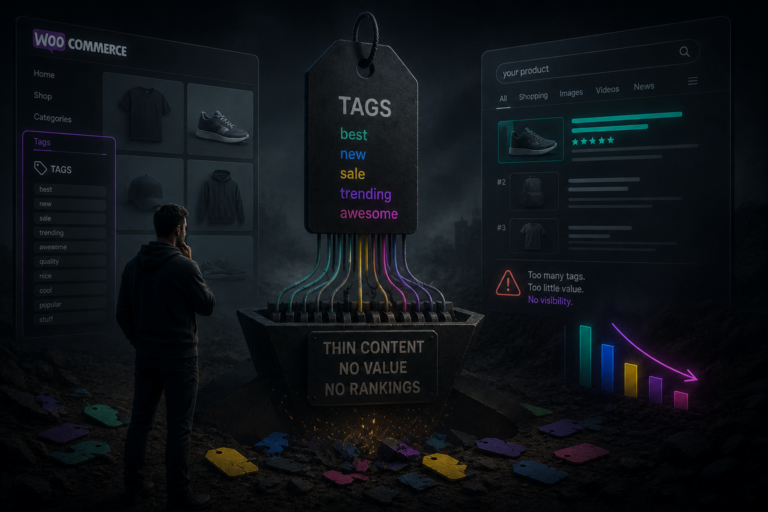
This is the newest cause, and the hardest to control. AI Overviews and similar AI-generated answers now appear above many product searches. They summarize options, list features and sometimes recommend specific products. The searcher gets an answer without scrolling. Your impression is counted, but the click never comes. WooCommerce tags: the quiet ranking killer.
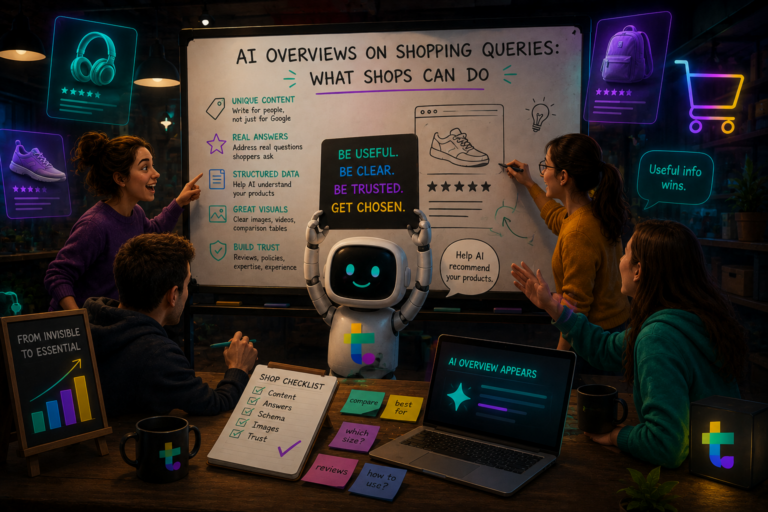
You cannot switch these summaries off. You can, however, check which queries trigger them and adapt. Informational and comparison queries are hit hardest. Precise, high-intent queries with brand or model names are usually less affected. We explore practical responses in AI Overviews on shopping queries: what shops can do.
The goal shifts from “rank first” to “be the source the AI cites and the page worth visiting next.” Clear specifications, honest comparisons, original photos and real usage details give both AI systems and people a reason to choose you.
A simple repair plan for stalled shopping query traffic
Do not try to fix everything at once. Change one variable per group of pages, so you can see what worked. Here is a practical order:
- Segment queries by position: below 8 is a ranking problem, top 5 is a snippet or intent problem.
- Fix structured data errors first, because they affect many pages at once.
- Rewrite titles and descriptions for your top ten high-impression, low-CTR pages.
- Review intent for queries where the wrong page type ranks.
- Tag AI-affected queries separately so they do not distort your CTR benchmarks.
Give each change at least three to four weeks before judging it. Search data is noisy, and seasonal demand can hide real progress. Compare equal periods and similar positions, not raw totals.
Beyond Google: where the click goes now
Impressions without clicks can also be a signal that discovery is moving elsewhere. Shoppers increasingly ask AI assistants for product recommendations before they ever reach a search results page. It is worth checking whether your products appear there too. Our article Is your product in ChatGPT’s shopping answer? shows how to test that.
There is no magic fix for a stalled shopping query. There is only a clear diagnosis: rank, snippet, rich results, intent or AI. Once you know which one is holding you back, the next step becomes obvious, and those flat click lines finally start to move.